How to Create a Booking Page That Converts (Step by Step)
A booking page is a dedicated online scheduling portal that allows clients to view your real-time availability, choose an appointment slot, answer intake questions, and pay for services directly without back-and-forth emails.
Want to know a frustrating truth about online scheduling?
Most booking links actively drain your conversion rates.
See, when you send a prospective client a bare calendar grid with a generic white background, you ask them to make a commitment with zero context. You expect them to hand over their contact details and lock in a time slot without reminding them why your call is worth their attention.
Sound familiar?
Here's the thing. A scheduling page shouldn't just be an administrative utility. It should act as a conversion engine. When designed properly, your scheduling workflow converts warm traffic into paid consultations, qualified discovery calls, and loyal clients.
In this guide, we will walk through exactly how to create a booking page that converts, step by step.
Why Most Standard Booking Pages Fail to Convert
Most calendar tools treat booking as an admin task.
You give someone a link, they see a tiny box with dates, and they pick a time. But if a lead clicked a link from social media, an cold email, or a guest blog post, they might still be on the fence.
When they reach a sterile grid, friction wins. They pause, hesitate, and close the tab. You end up losing high-value meetings simply because your scheduling page provided zero reassurance.
To double or triple your conversion rate, you must transform your scheduling link into a mini-lander booking page. A mini-lander booking page combines traditional calendar availability with full-featured landing page elements, including video introductions, social proof, client testimonials, transparent pricing, and conversion-focused copy.
Let's break down how to construct one from scratch.
Step 1: Define the Purpose and Scope of Your Event Type
Before customising colours or tweaking layouts, clarify what this specific page needs to achieve.
Every booking page should serve one primary outcome. Are you qualifying incoming leads, running paid coaching sessions, or conducting 15-minute quick syncs?
Define these parameters up front:
- Meeting duration: Keep discovery calls tight (15 to 20 minutes) and deep-dive strategy calls generous (45 to 60 minutes).
- Buffer time: Build in 10 to 15 minutes after each meeting to record notes and clear your head. This prevents back-to-back fatigue.
- Booking horizon: Restrict how far in advance clients can book. Allowing people to schedule three months out leads to high no-show rates. A 14-day rolling window creates urgency and keeps your schedule predictable.
- Notice period: Require at least 4 to 24 hours of advance notice so nobody drops a call onto your calendar while you are away from your desk.
Step 2: Craft Compelling Copy and Value Propositions
Your page headline shouldn't read "30-Minute Meeting". That is generic and uninspiring.
Instead, write copy that highlights the outcome of the meeting for the attendee. Frame the call around the value they receive.
Write an Outcome-Focused Headline
Use your main heading to state clearly what the attendee gains by booking the slot.
Instead of "Discovery Call", try "Strategy Session: Scalable Growth Plan". Instead of "Paid Consultation", try "1-on-1 Legal Architecture Review".
Detail What Happens on the Call
Include a short bulleted list explaining what will take place during the session. For instance:
- We will review your current customer acquisition channels.
- We will identify the top two bottlenecks capping your sales volume.
- You will walk away with an actionable 30-day expansion blueprint.
This removes ambiguity and sets clear expectations (which drastically reduces drop-offs).
Step 3: Customise the Visual Design and Mini-Lander Layout
Visual trust matters. If your page looks like an default system utility, leads won't feel comfortable sharing their contact details or payment information.
This is where moving beyond a basic calendar tool becomes critical. With MintCal's mini-lander page builder, you get access to ~13 modular widgets, 19 curated fonts, gradient headers, and flexible layout templates that match your brand identity perfectly.
Here are the core visual components every mini-lander booking page needs:
- Video intro widget: Embed a short 60-second video welcoming the user, stating who the call is for, and explaining what to prepare.
- Social proof and client logos: Display logos of notable companies you have worked with or badges of recognition.
- Testimonial cards: Add real quotes from existing clients praising your calls or consulting services.
- Bio and avatar: Show a professional, welcoming headshot alongside a brief bio explaining your credentials.
- FAQ widget: Answer the three most common questions prospects ask before committing to a meeting.
When Sarah, a freelance brand designer, upgraded her standard scheduling grid to a branded mini-lander booking page with embedded client reviews, her visitor-to-booked-call conversion rate jumped from 14% to 31% in three weeks. Context drives action.
Step 4: Optimise Intake Form Questions for High Completion
Intake form fields are a balancing act between qualifying leads and maintaining momentum.
Ask too few questions, and you risk wasting time on unqualified calls. Ask too many questions, and form abandonments skyrocket.
Follow these guidelines for intake forms:
- Stick to 3 to 5 core questions: Ask for name, email address, website/social handle, and one specific context question.
- Use open-ended diagnostic questions: Ask "What is the single biggest challenge you are facing right now?" rather than vague options.
- Make optional fields truly optional: Label non-essential fields clearly so attendees don't feel overwhelmed.
Step 5: Integrate Frictionless Payment Gateways
If you sell consultations, strategy workshops, or paid coaching sessions, collecting payment upfront during the scheduling process eliminates non-payment issues and cuts no-shows to near zero.
However, forcing international clients through a single payment processor causes friction at checkout.
Many standard scheduling tools offer limited payment choices. Calendly, for example, supports only Stripe and PayPal. Cal.com offers four native payment integrations.
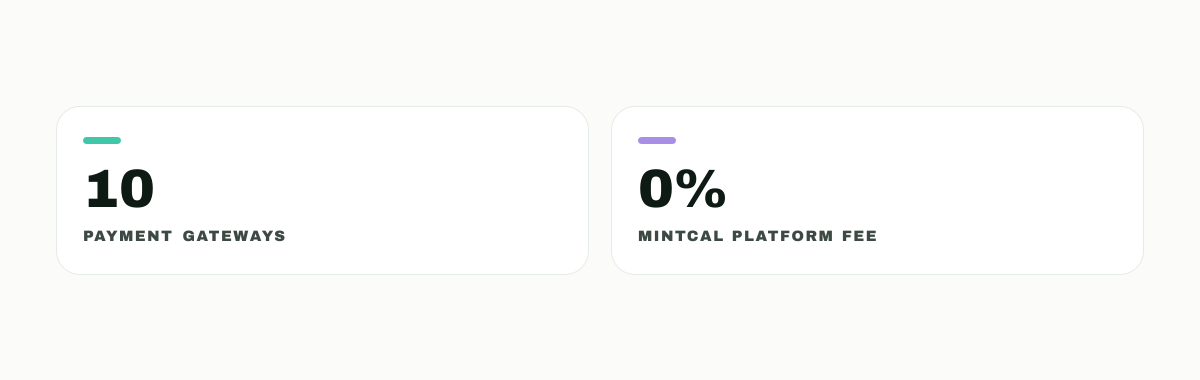
MintCal gives your attendees complete freedom by supporting 10 global payment providers right on the booking page: Stripe, PayPal, Paddle, Lemon Squeezy, Square, PayFast, Yoco, Paystack, Peach Payments, and DodoPayments.
Whether your buyer is based in London, Johannesburg, San Francisco, or Lagos, they can pay in their local currency using their preferred local payment gateway. You can review all supported payment options across our /features page.
Step 6: Connect Calendar Sync and Prevent Double-Booking
There is nothing more embarrassing than having to email a fresh lead to reschedule because your calendar allowed a double booking.
To ensure complete accuracy, connect all your personal and work calendar accounts to your scheduling platform simultaneously.
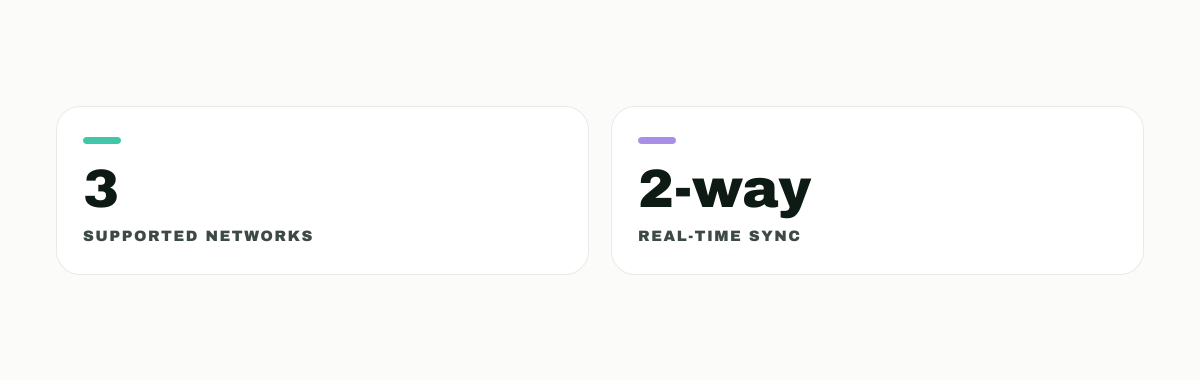
MintCal seamlessly synchronises two-way availability across Google Calendar, Microsoft Outlook, and Apple Calendar at once. If an event appears on your personal Apple Calendar or your corporate Outlook calendar, MintCal instantly blocks those time slots on your public mini-lander booking page.
Step 7: Set Up Automated Reminders and Follow-Ups
Getting a client to complete your booking form is only half the battle. You also need them to show up on time.
Automated email sequences bridge the gap between the initial booking and the live session.
Set up these automated email workflows:
- Instant confirmation email: Send an immediate calendar invite containing the call link (Google Meet, Zoom, or Microsoft Teams) along with prep notes.
- 24-hour reminder email: Remind the attendee about the upcoming session and highlight key items to bring or review.
- 1-hour reminder email: Send a final, direct reminder containing the video join link for easy access.
- Post-meeting follow-up: Automatically send a thank-you note or redirect them to additional resources after the meeting ends.
MintCal allows you to send fully custom-branded email sequences that match your domain and design choices. You can also monitor past attendance using built-in no-show tracking and send one-click reschedule links whenever plans change.
How to Build Your Mini-Lander Booking Page in MintCal
Ready to convert more traffic into confirmed meetings? Setting up a high-converting page takes only a few minutes in MintCal.
Here is how to set it up:
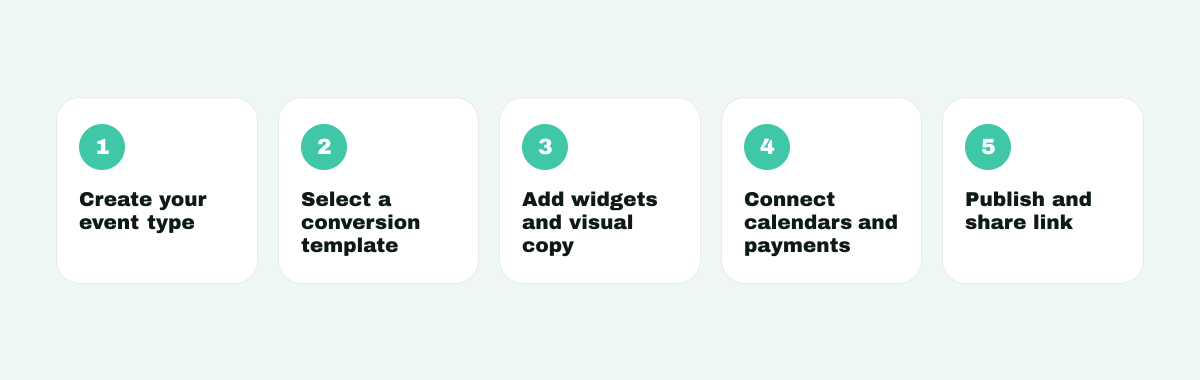
- Create your event type: Log into your MintCal dashboard, click New Event Type, and set your title, custom URL slug, duration, and buffer periods.
- Select a template: Explore our pre-designed /templates or start from scratch using the full page-builder canvas.
- Add custom widgets: Drag and drop your intro video, testimonial cards, client logos, FAQ sections, and host bio onto your mini-lander booking page layout.
- Configure payment gateways: Choose from 10 supported payment processors (including Stripe, PayPal, Paddle, Lemon Squeezy, or PayFast) if you are charging for the call.
- Sync your calendars: Connect Google Calendar, Outlook, or Apple Calendar to manage real-time availability.
- Publish and share: Copy your custom mini-lander booking link and add it to your website, email signature, or social media bio.
Check out our simple /pricing plans to choose the setup that fits your business scale.
Frequently Asked Questions
What is a mini-lander booking page?
A mini-lander booking page is a specialized scheduling page that combines live calendar availability with full landing page elements like introductory videos, social proof, testimonial widgets, and custom branding to increase booking conversion rates.
How do I accept payments on my booking page?
You can connect your preferred payment provider directly to your scheduling software. When clients select a time slot, they complete payment before the booking is confirmed. MintCal supports 10 payment gateways globally without taking an extra fee on top of processor costs.
Can I embed my booking page on my existing website?
Yes. You can embed your entire booking experience directly onto your WordPress, Webflow, Squarespace, or custom website using an inline embed widget or a popup button.